
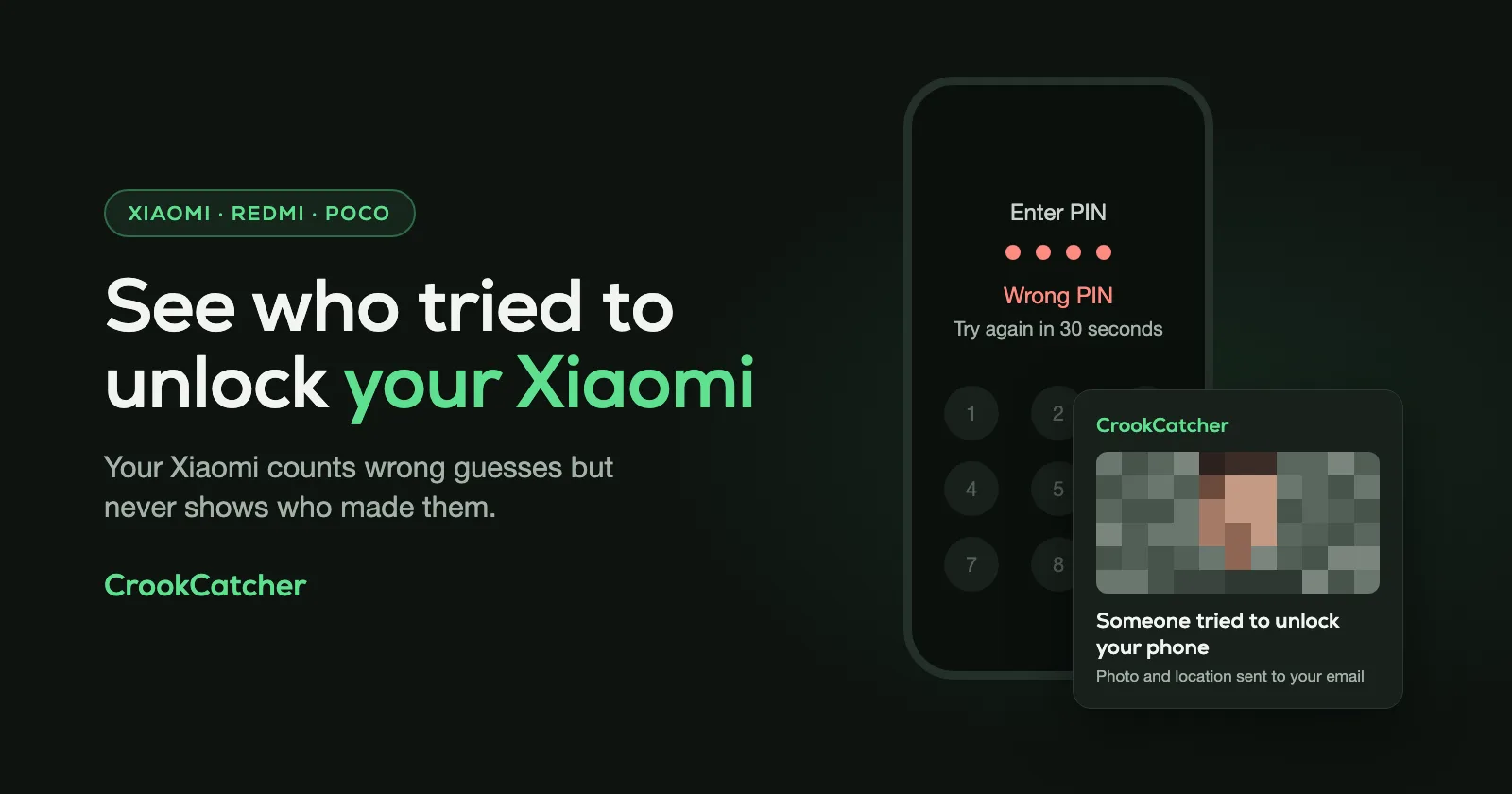
Xiaomi, Redmi and POCO phones can’t show you who tried to unlock them. HyperOS limits how many wrong PINs, patterns or passwords someone can enter, but it keeps no list of attempts you can check, and it never takes a photo. To find out who it was, install an app that’s notified of failed unlocks, like CrookCatcher. It takes a photo with the front camera after a wrong PIN and emails it to you with the location. On a Xiaomi phone it needs two extra settings to keep working in the background, covered below.
What your Xiaomi does after a wrong PIN
Xiaomi’s security documentation says the system limits the number of times an incorrect password can be entered, and locks the phone after repeated wrong entries so nobody can guess their way in. In practice the lock screen shows a countdown, and the person has to wait until it ends before trying again.
Xiaomi doesn’t publish how many guesses are allowed or how long each wait is, and it can differ between HyperOS versions. Here’s what Android itself does with failed unlock attempts.
A countdown is the only sign you’ll see that someone tried. It doesn’t say who, when, or how many times.
Xiaomi settings worth turning on
These don’t show you who tried, but they make your phone harder to get into and easier to find.
Find device (Xiaomi Cloud)
Xiaomi’s own tracking service is called Find device.
Go to: Settings > Xiaomi Account > Xiaomi Cloud > Find device
Turn it on, grant the permissions it asks for and confirm with your Xiaomi Account password. Location has to be on. If the phone goes missing, sign in at i.mi.com with the same account and choose Find device. You can see the phone on a map, play a sound at full volume even in silent mode, lock it with Lost mode or erase it.
Xiaomi says none of this works if the phone isn’t connected to the internet or the SIM card has been replaced.
Google’s Theft protection
Xiaomi phones with Google services also have Android’s Theft protection.
Go to: Settings > Google > All services > Theft protection
- Theft Detection Lock: locks the screen if the phone detects that someone snatched it and ran.
- Offline Device Lock: locks the screen soon after the phone goes offline.
You need a screen lock first. If a switch is grayed out, your model doesn’t support that feature. Read more in Android Theft Detection Lock: what it does and what it misses.
Also make sure Google’s Find Hub is on. It works alongside Xiaomi’s Find device, and it’s worth having both.
What your Xiaomi can’t tell you
- Who tried. No photo of the person.
- When it happened, or how many times.
- Where the phone was at the time.
- An alert while it happens.
Xiaomi’s App lock (Settings > Apps > App lock) doesn’t fill this gap either. It puts a password on individual apps, and Xiaomi’s help page describes no option to photograph someone who gets it wrong.
How to get a photo of whoever tries to unlock your Xiaomi
CrookCatcher fills exactly that gap. Android notifies apps with the Device admin permission each time an unlock fails. CrookCatcher uses that to take a photo with the front camera, record the location and an approximate address, and email both to you. Every attempt is also saved in the app with its time.
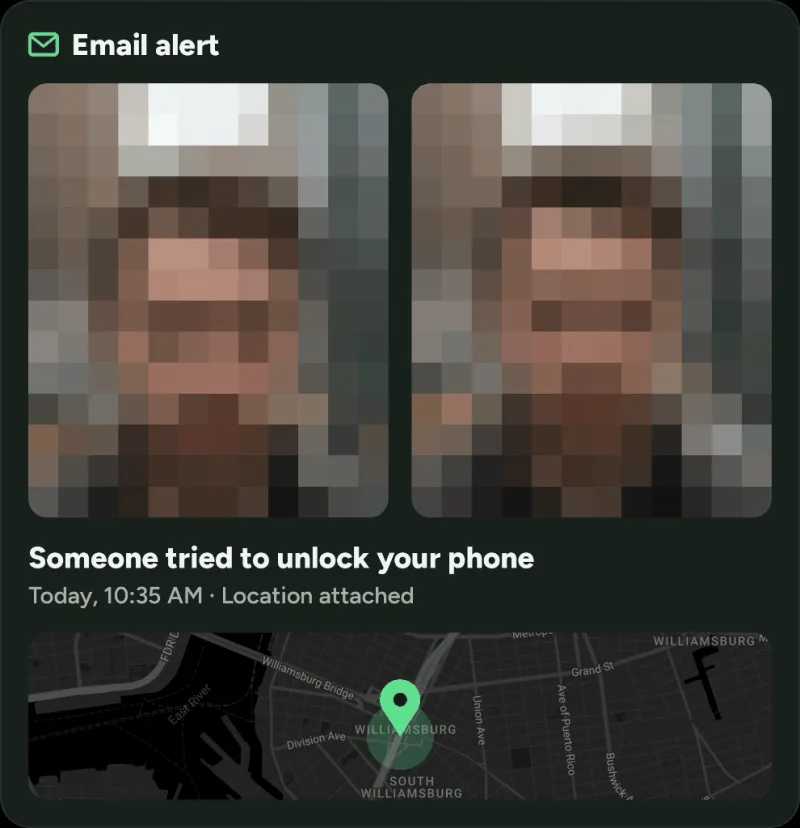
Set it up on your Xiaomi, Redmi or POCO:
- Install CrookCatcher from Google Play. There’s no account to create.
- Allow Device admin. CrookCatcher uses this permission only to know when an unlock attempt fails.
- Allow camera and location access.
- Connect a Gmail account for the alert emails. CrookCatcher can only send emails from it, not read them.
- Test it. Lock your phone, enter a wrong PIN on purpose, then unlock it. Your own photo should appear in the app and your inbox.
Two extra settings on Xiaomi phones
HyperOS is strict about apps that run in the background. Without these two settings it may stop CrookCatcher after a while, and you’d get no photo when it matters.
- Allow autostart. Go to
Settings > Apps > Permissions > Background autostartand turn it on for CrookCatcher. - Remove battery restrictions. During setup, CrookCatcher asks you to tap Manage battery settings. Choose No restrictions on the screen that opens.
Menu names can differ slightly between HyperOS versions. If you can’t find Background autostart, search for “autostart” in Settings. Then repeat the wrong-PIN test a day later to check that it still works.
Since 2014, CrookCatcher has been downloaded more than 12 million times, and it takes around 1.2 million intruder photos a day.
Frequently Asked Questions
Q: Does Xiaomi have a built-in intruder selfie feature?
A: No. Xiaomi’s documentation describes no feature that photographs someone who enters a wrong lock screen or App lock password. To get a photo, you need an app like CrookCatcher.
Q: How many wrong PIN attempts does a Xiaomi phone allow?
A: Xiaomi doesn’t publish the numbers. After several wrong guesses the lock screen shows a countdown, and the person has to wait for it to end before trying again.
Q: Can I see failed unlock attempts on a Redmi or POCO phone?
A: No. Redmi and POCO phones run the same HyperOS as Xiaomi phones. They count wrong guesses only to time the lockouts, and never show them to you.
Q: Why did CrookCatcher stop taking photos on my Xiaomi?
A: Most often HyperOS has stopped it in the background. Turn on Background autostart for CrookCatcher and set its battery setting to No restrictions, as described above. Also note that after a restart, the phone has to be unlocked once before any app can use the camera.
Q: Can a thief turn off my Xiaomi from the lock screen?
A: On most Xiaomi phones, yes. Xiaomi’s help page for the Redmi Note 13 says a password to shut down isn’t a standard feature. That’s why it helps to get a photo and location the moment someone enters a wrong PIN, before the phone is switched off. See how to stop power off and airplane mode from the lock screen for what you can do.
Q: Will the person see that they were photographed?
A: CrookCatcher works in the background without a camera preview. Recent Android versions show a small indicator while the camera is in use; that’s a system feature apps can’t hide.
Sources
- Xiaomi Trust Center: MIUI Security White Paper (limits on wrong password entries)
- Xiaomi Support: How to use the Find device feature of Xiaomi Cloud
- Xiaomi Support: How to set the phone to lock when it detects theft
- Xiaomi Support: How to switch Background autostart on or off for apps
- Xiaomi Support: How to enable App lock
- Xiaomi Support: Does the Redmi Note 13 require a password to shut down?
- Google, Android Help: Protect your personal data against theft
- Android Developers: DeviceAdminReceiver (how apps are notified of failed attempts)

