
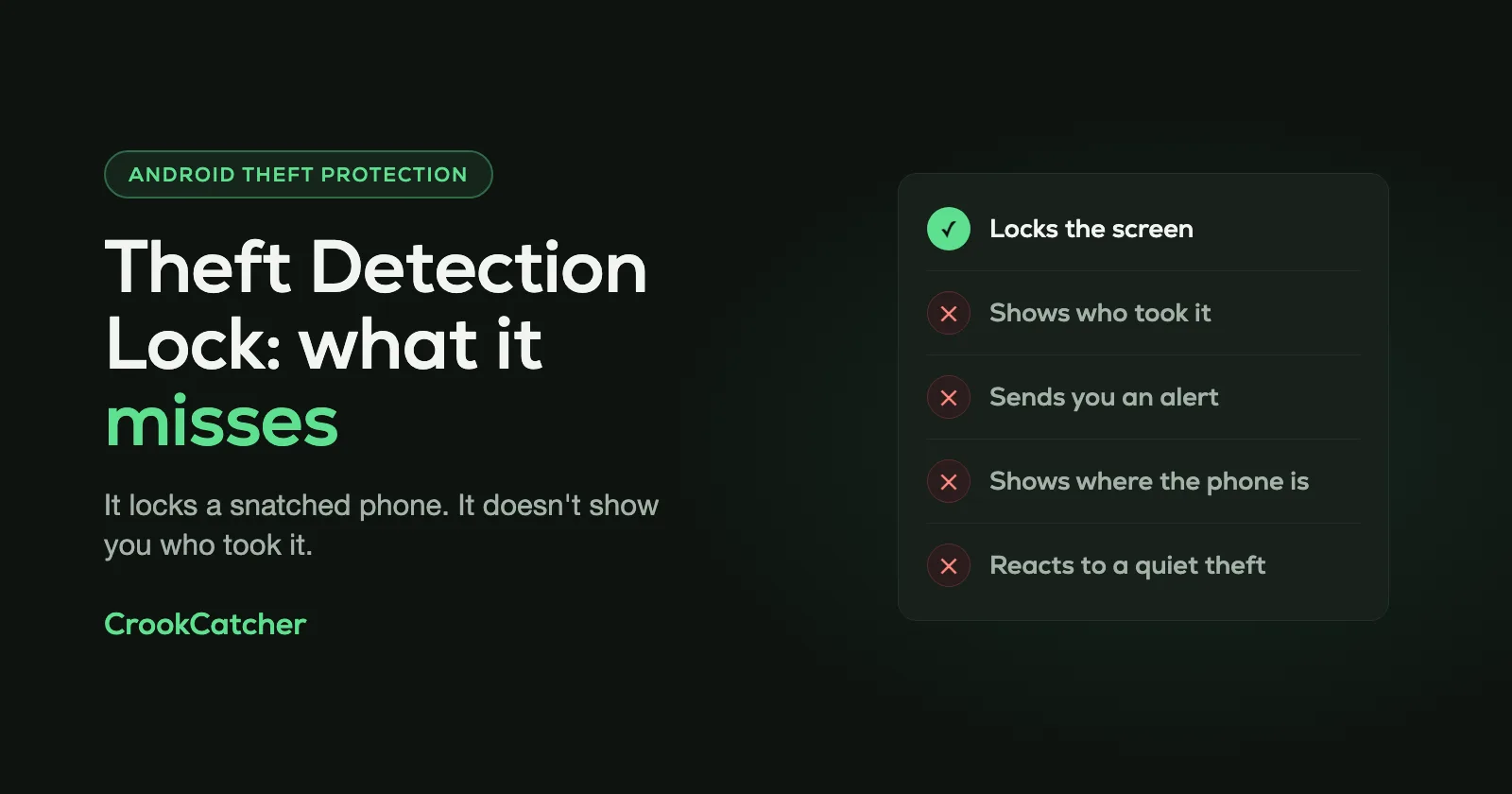
Theft Detection Lock is a free Android setting that locks your screen when the phone senses that someone grabbed it out of your hand and ran, biked or drove away. Turn it on under Settings > Google > All services > Theft protection. It protects what’s on the phone, but it doesn’t help you get the phone back, and it never shows you who took it. Google also lists situations where it may not trigger at all.
What Theft Detection Lock does
Most phone thefts in the street happen while the phone is unlocked and in your hand. That’s the worst moment to lose it: the thief has an open phone with your email, photos and banking apps.
Theft Detection Lock is built for that moment. Google says it uses AI, your phone’s motion sensors, Wi-Fi and Bluetooth to detect when someone unexpectedly takes the phone and runs, bikes or drives away. When it does, it locks the screen right away. The thief is left with a locked phone and needs your PIN, pattern or password to get any further.
It works on the phone itself. You don’t have to do anything when it happens.
How to turn on Theft Detection Lock
You need a screen lock (PIN, pattern or password) first.
Go to: Settings > Google > All services > Theft protection
Turn on Theft Detection Lock. While you’re there, turn on the two settings next to it as well:
- Offline Device Lock locks the screen after the phone has been used offline for a short time, for example when a thief switches on airplane mode. The phone has to be unlocked when it loses its connection, and it can lock this way twice in 24 hours.
- Failed Authentication Lock locks the screen when unlock attempts fail repeatedly. It’s on by default.
On a Pixel, the same menu is also under Settings > Security & privacy > Device unlock > Theft protection. On a Samsung Galaxy, look under Settings > Security and privacy > Lost device protection > Theft protection.
If the switch is grayed out, your phone doesn’t support the feature. Google says these features aren’t supported on tablets, wearables or Android Go phones, and that support can vary by phone model. They need Android 10 or later, and some need Android 15 or later.
On new Android phones activated in Brazil, Google turns Theft Detection Lock and Remote Lock on by default. Everywhere else, check it yourself.
When Theft Detection Lock may not trigger
Google is open about this on its help page. To avoid locking your phone during normal use, Theft Detection Lock may not trigger when:
- Your phone has a stable Wi-Fi or Bluetooth connection. At home, at work, or with your earbuds or watch connected and nearby, it may stay quiet.
- It has already locked the phone several times in a short period.
It also does nothing when the screen is already locked, because there’s nothing left to lock.
And it only recognizes one kind of theft: a sudden grab followed by someone moving away fast. It won’t react to:
- a phone lifted quietly from a pocket, bag or table,
- a phone you left behind in a taxi or a bar,
- someone at home or at work picking up your phone and trying your PIN.
If it locks your phone by mistake, for example when you run for a bus, just unlock it and carry on.
What Theft Detection Lock can’t do
Even when it works perfectly, the result is a locked phone in someone else’s hands. Theft Detection Lock doesn’t:
- Show you who took it. No photo of the person.
- Tell you it happened. There’s no alert to your email or another device.
- Tell you where the phone is. Finding it is a separate feature, Find Hub.
- Stop the thief from turning the phone off. See how to stop power off and airplane mode from the lock screen.
For the phone itself, pair it with the other built-in settings:
- Find Hub shows the phone on a map and lets you ring, lock or erase it.
- Remote Lock lets you lock the phone from any browser at android.com/lock with just your phone number. It needs an active SIM, a verified phone number, Find Hub turned on and an internet connection.
All five are explained in 5 Android anti-theft settings to turn on today.
How to get a photo of the person who has your phone
After Theft Detection Lock has done its job, the thief is looking at your lock screen. Almost every thief then does the same thing: tries a few PINs.
That’s the moment CrookCatcher uses. Android notifies apps with the Device admin permission each time an unlock attempt fails. CrookCatcher then takes a photo with the front camera, records the GPS location and an approximate address, and emails both to you. The photo and the location are in your inbox even if the phone is switched off a minute later, and you can give them to the police.
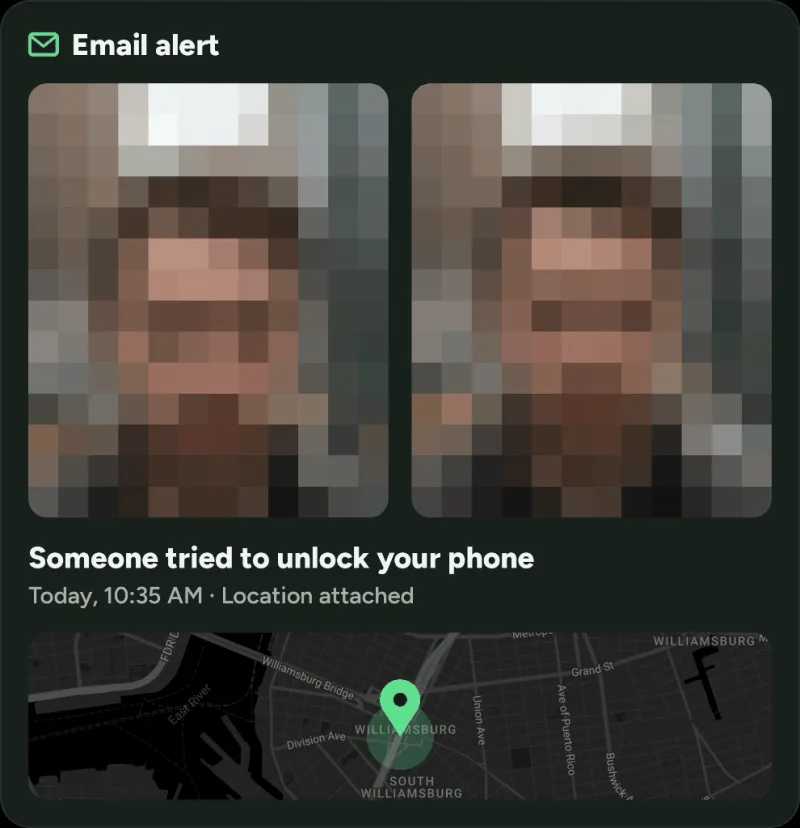
The two work well together: Theft Detection Lock puts the thief in front of the lock screen, and CrookCatcher photographs whoever tries to get past it. It also covers the cases Theft Detection Lock ignores, like a phone taken from a table or someone at home guessing your PIN.
CrookCatcher has been downloaded more than 12 million times since 2014 and takes around 1.2 million intruder photos a day. Setup takes a few minutes: see how to see who tried to unlock your Android phone.
Frequently Asked Questions
Q: Is Theft Detection Lock on by default?
A: Usually not. Google turns it on by default on new Android phones activated in Brazil. On other phones, check under Settings > Google > All services > Theft protection.
Q: Which phones have Theft Detection Lock?
A: Most Android phones with Google services, running Android 10 or later. Google says it isn’t supported on tablets, wearables or Android Go phones, and that support can vary by model. If the switch is grayed out, your phone doesn’t support it.
Q: Why didn’t Theft Detection Lock lock my phone?
A: Google says it may not trigger when the phone has a stable Wi-Fi or Bluetooth connection, or after several locks in a short period. It also only reacts to a grab followed by fast movement, and it isn’t active when the screen is already locked.
Q: How do I turn off Theft Detection Lock?
A: Go to Settings > Google > All services > Theft protection and turn off the Theft Detection Lock switch. If it locks your phone by mistake now and then, you only need to unlock it again, so most people are better off leaving it on.
Q: Does Theft Detection Lock track my phone?
A: No. It only locks the screen. To see where the phone is, use Find Hub at google.com/android/find.
Q: Does Theft Detection Lock take a photo of the thief?
A: No. Android’s theft protection never uses the camera. To get a photo and the location of anyone who then tries to unlock the phone, you need an app like CrookCatcher.
Sources
- Google, Android Help: Protect your personal data against theft
- Google, The Keyword: New Android theft protection feature updates (January 2026)
- Google: Find Hub
- Google: Remote Lock (android.com/lock)

