
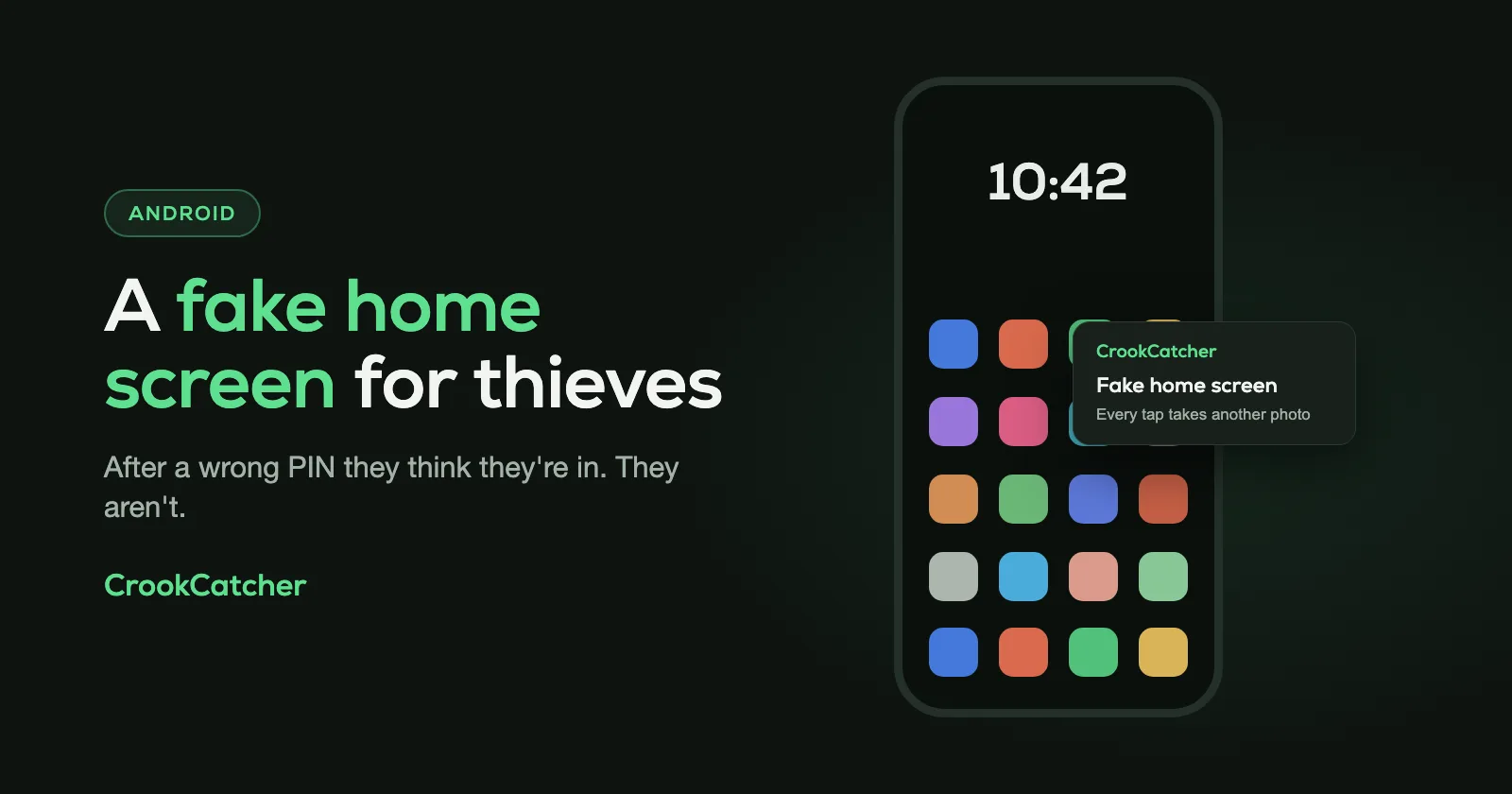
Android doesn’t have a built-in fake home screen. What it has are ways to hide part of your phone: Private space on Android 15 and later, Secure Folder on Samsung Galaxy phones, guest mode and app pinning. They work well, but each has to be set up or switched on beforehand, and none of them appear when someone enters a wrong PIN. CrookCatcher’s Fake home screen does that: after a wrong PIN, pattern or password it shows a home screen that looks real but opens nothing, and it takes a photo when the person taps an app.
What Android offers for hiding your apps
Private space (Android 15 and later)
Private space is a separate, locked area for apps you want to keep out of sight.
Go to: Settings > Security & privacy > Private space
It has its own lock. While it’s locked, its apps don’t appear in the app list, in recent apps, in sharing or in Settings, and you can hide the space itself. Google notes that it can’t be hidden from someone who connects the phone to a computer.
Secure Folder (Samsung Galaxy)
Samsung’s version hides apps and files behind a separate passcode.
Go to: Settings > Security and privacy > More security settings > Secure Folder
To hide the folder’s icon, turn off Add Secure Folder to Apps screen.
Guest mode
A guest gets an empty space of their own. Your files, messages and apps aren’t shared with it.
Go to: Settings > System > Multiple users
If you don’t see the option, your phone doesn’t support extra users.
App pinning
Pinning keeps the phone on one app until your PIN is entered. It’s meant for handing your phone to someone for a moment.
Go to: Settings > Security > Advanced > App pinning
Then open the recent apps view, tap the app’s icon and choose Pin.
Where the built-in options fall short
- You have to act first. Guest mode and app pinning only help if you switch them on before the phone leaves your hand.
- Your real home screen still shows. Private space and Secure Folder hide what you put in them. Everything else, like email, photos and messages, is in plain view once the phone is unlocked.
- Nothing reacts to a wrong PIN. Someone guessing your code just sees “Wrong PIN” and knows to keep trying.
- No evidence. None of these tell you that someone tried, or who it was.
A fake home screen after a wrong PIN
CrookCatcher’s Fake home screen is a decoy. When someone enters a wrong PIN, pattern or password, the lock screen is replaced by what looks like your home screen. It’s built from the icons of apps that are really installed on your phone, so it looks right.
It’s a picture of a home screen and nothing more. Tapping an icon opens no app. Instead, CrookCatcher can take another photo each time the person taps, so the more they poke around, the more photos you get. Your real phone stays locked behind it.
There are two situations where this helps:
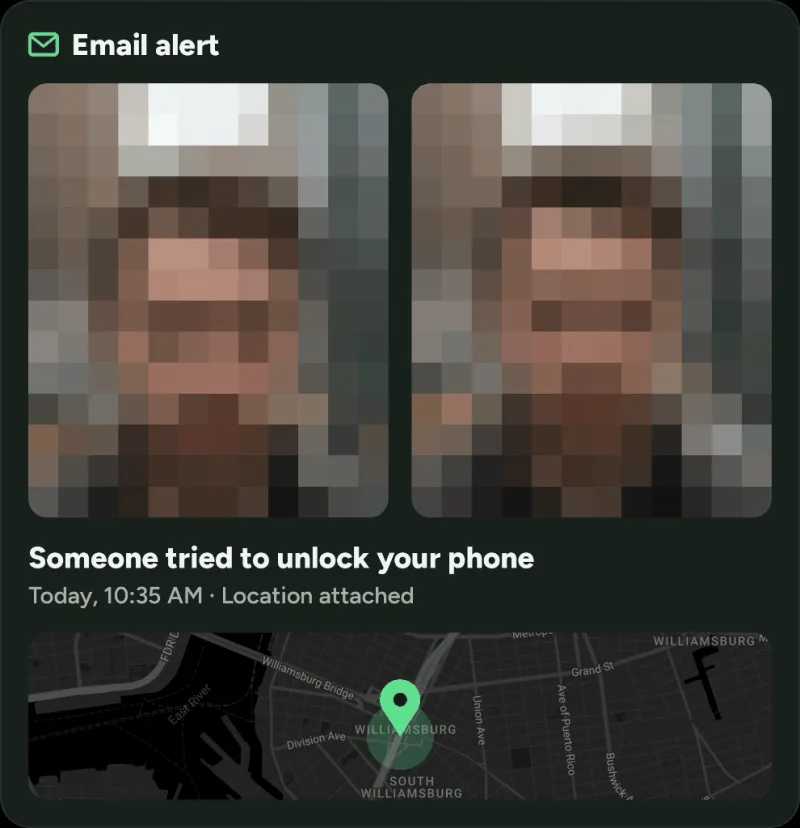
- A thief or a snoop guessing your PIN. They think they got in and stop guessing. Meanwhile CrookCatcher has photographed them and emailed you the photo with the location.
- Someone pressuring you to unlock your phone. Enter a wrong code on purpose. The fake home screen appears, and it looks as if you did what they asked, while your apps and data stay locked.
How to set it up:
- Install CrookCatcher from Google Play and finish the setup. Taking the photo and emailing it are free.
- Turn on Show fake home screen in the app’s settings for failed unlocks. It’s part of CrookCatcher Pro.
- Check the preview, and choose whether a tap on the fake home screen should take another photo.
- Test it. Lock your phone and enter a wrong PIN.
On Xiaomi phones the app asks for a few extra permissions before the fake home screen can appear. Fake home screen and Show message can’t be on at the same time, so pick the one that fits you: a decoy that keeps the person busy, or a message that tells them they’ve been caught.
Use both
The built-in options and the decoy solve different problems, so use them together:
- Put your most private apps in Private space or Secure Folder.
- Use app pinning when you hand your phone to someone.
- Let the fake home screen handle whoever tries your PIN when you’re not there.
For the settings that protect a stolen phone, see 5 Android anti-theft settings to turn on today.
Frequently Asked Questions
Q: Does Android have a fake or decoy home screen?
A: No. Android can hide apps with Private space, and Samsung with Secure Folder, but neither shows a decoy after a wrong PIN.
Q: Can I set a second PIN that opens a different home screen?
A: Not on standard Android. Guest mode and Private space give you separate spaces, but they aren’t opened by a second lock screen PIN. With CrookCatcher’s Fake home screen, any wrong PIN shows the decoy.
Q: Can someone open my apps from the fake home screen?
A: No. The icons don’t open anything. The phone stays locked, and the person still needs your real PIN, pattern or password.
Q: Will the fake home screen fool everyone?
A: It’s convincing at a glance because it uses your phone’s real app icons. Someone who taps around for a while will notice that nothing opens. By then they’ve been photographed.
Q: Is the fake home screen free?
A: It’s a CrookCatcher Pro feature. The free version takes a photo after a wrong PIN and emails it to you with the location.
Q: How do I get back to my real phone?
A: Turn the screen off and on, then unlock with your real PIN, pattern, password or fingerprint as usual.
Sources
- Google, Android Help: Hide sensitive apps with private space
- Samsung: Use Secure Folder on your Galaxy phone
- Google, Android Help: Delete, switch, or add users
- Google, Android Help: Pin and unpin screens

