
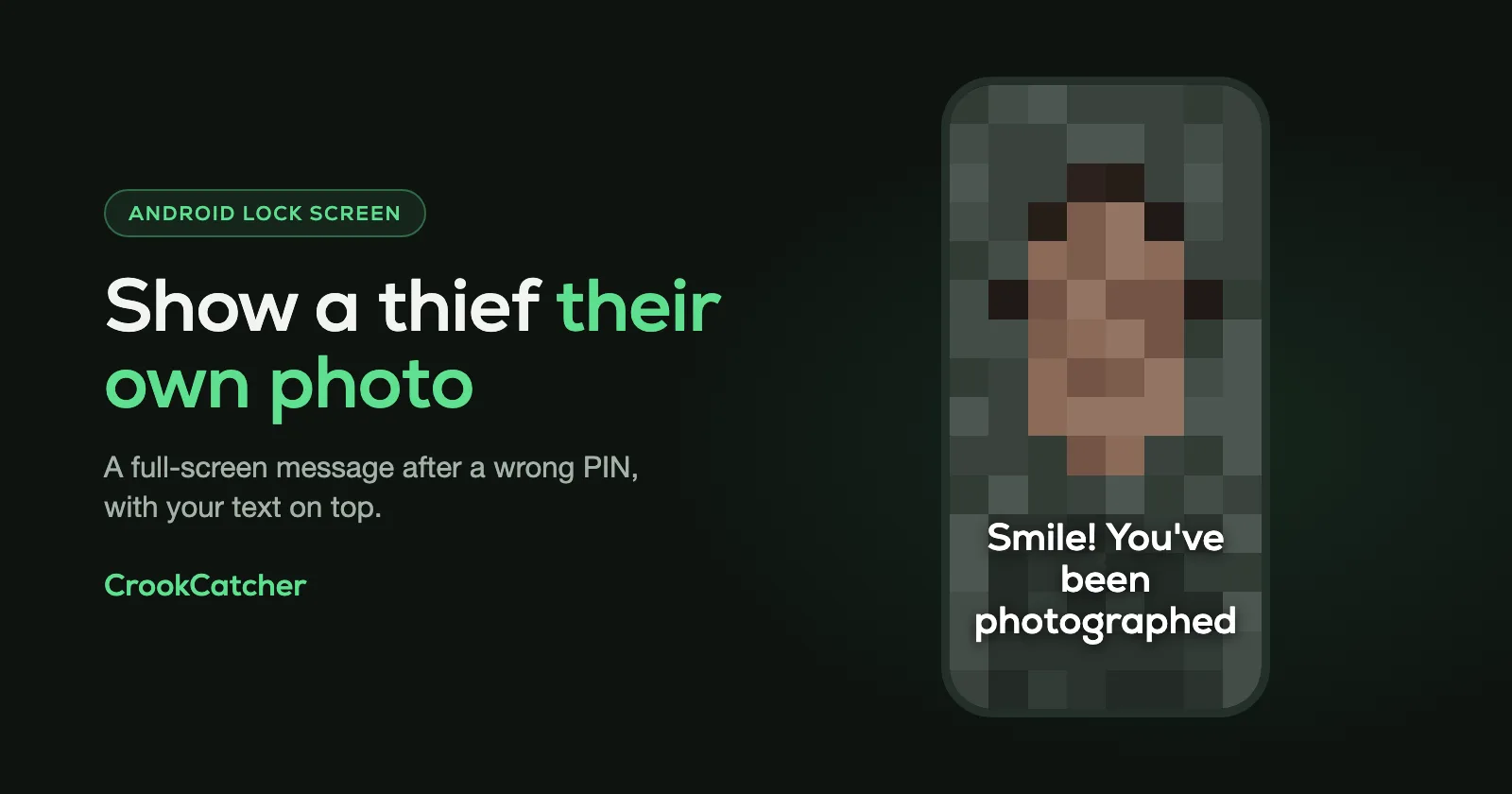
Android has three built-in ways to show a message on the lock screen of a lost or stolen phone. You can add a permanent line of text (Settings > Display > Lock screen > Add text on lock screen, or Contact information on a Samsung), and after the phone is gone you can send a message to it with Find Hub’s Mark as lost. All three are plain text aimed at an honest finder. None of them react when someone tries to break in. For that, CrookCatcher can fill the whole screen with your own picture and text after a wrong PIN, or with the photo it just took of the person holding your phone.
1. Add a permanent text to the lock screen
This is the “If found, please call…” line. It’s always visible, so it works even if the phone has no connection.
On a Pixel and most Android phones, go to: Settings > Display > Lock screen > Add text on lock screen
On newer Pixels you can also touch and hold the home screen, then go to Wallpaper & style > Lock screen > More lock screen settings > Add text on lock screen.
On a Samsung Galaxy, go to: Settings > Lock screen and AOD > Contact information
Type your text and tap Done. On One UI 7 and later this is where the setting lives; older versions had it in the lock screen editor.
What to write: a phone number or email address that isn’t on this phone, such as a partner’s number or a second email address. Keep in mind that anyone who picks up the phone can read it, so don’t include your home address.
2. Add emergency contacts
Android can also show emergency contacts from the lock screen. A finder swipes up on the locked screen, taps Emergency, then View emergency info.
Set it up in the Safety app: Your info > Emergency contacts > Add contact. Under Emergency info access, check that Show when locked is on.
3. Send a message after the phone is gone: Mark as lost
If you didn’t set anything up beforehand, you can still put a message on the lock screen remotely.
- Open google.com/android/find on another device and sign in to your Google Account.
- Choose your phone and tap Mark as lost.
- Enter your contact information and a message to show on the lock screen.
- Tap Mark as lost again.
This also locks the phone with your PIN, pattern or password. It only reaches the phone if it’s switched on and online, which is why a thief’s first move is often to turn it off. See how to stop power off and airplane mode from the lock screen.
What the built-in messages can’t do
These options are made for a phone that was lost and found by someone honest. Against a thief, or someone snooping, they fall short:
- Text only. No picture, and on most phones one small line.
- Always the same. The text doesn’t change when someone enters a wrong PIN. Nothing tells the person that the phone noticed them.
- Mark as lost needs a connection, and you have to notice the phone is gone first.
- No evidence. You don’t learn who has the phone or where it is from a lock screen message.
Show a full-screen message after a wrong PIN
CrookCatcher’s Show message works the other way round. Nothing is shown until someone enters a wrong PIN, pattern or password. Then the whole screen changes to a message you designed.
You build it in an editor inside the app:
- Your text, anywhere on the screen. Tap to edit, drag to move, pinch to resize. There are suggestions to start from, such as “Give me back my phone!” and “Nice try”.
- Your own picture as the background, or a plain color. Add a picture and a caption and you have your own meme, or a jump scare for the friend who keeps guessing your PIN.
- The crook’s photo. Instead of your picture, CrookCatcher can use the photo it just took of the person. They enter a wrong PIN, and a second later they’re looking at their own face with your words on top.
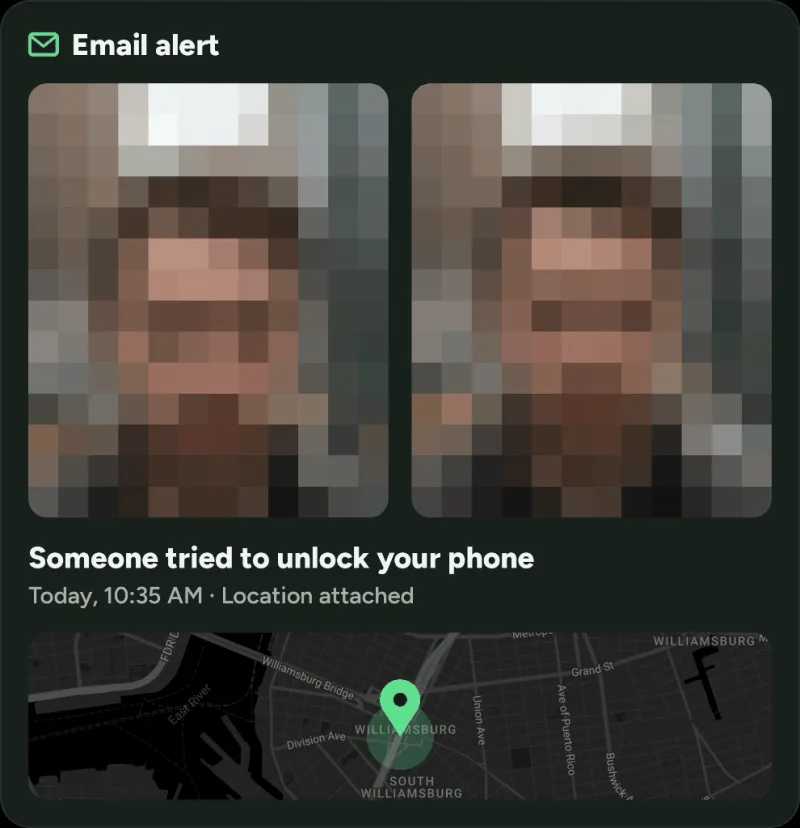
That last one is the reason this feature exists. A thief who sees “Smile! You’ve been photographed” over their own face knows the photo already exists. At the same moment CrookCatcher emails that photo to you, with the phone’s location. Leaving the phone somewhere it can be found starts to look like the better option.
How to set it up:
- Install CrookCatcher from Google Play and finish the setup. Taking the photo and emailing it are free.
- Turn on Show message in the app’s settings for failed unlocks. Show message is part of CrookCatcher Pro.
- Open the editor. Write your text, then choose a background color, Your picture or Crook’s photo.
- Tap “See it full screen” to check how it looks.
- Test it. Lock your phone and enter a wrong PIN.
The message closes when the person presses back or the screen turns off, and the phone stays locked the whole time.
Use both kinds of message together: Android’s permanent text for the honest finder, and Show message for everyone else.
What to write on the screen
- For a lost phone: “This phone is lost. Please call 555 0100. Reward.” A way to reach you matters more than anything else.
- For a thief: short and factual works better than angry. “Your photo and this location were just sent to the owner.”
- For family and friends: this is where the meme goes.
Don’t threaten anyone, and don’t go to meet a thief yourself. Give the photo and the location to the police.
Frequently Asked Questions
Q: How do I put my contact info on my Android lock screen?
A: Go to Settings > Display > Lock screen > Add text on lock screen. On a Samsung Galaxy, go to Settings > Lock screen and AOD > Contact information.
Q: Can I put a message on a phone I’ve already lost?
A: Yes, if it’s switched on and online. Open Find Hub at google.com/android/find, choose the phone and tap Mark as lost. You can enter contact information and a message for the lock screen.
Q: Can I show a picture on the lock screen when someone enters the wrong PIN?
A: Not with Android’s own settings. CrookCatcher’s Show message does this: after a wrong PIN, pattern or password it shows a full-screen picture with your text.
Q: Can my phone show a thief their own photo?
A: Yes. In CrookCatcher’s Show message editor, choose Crook’s photo as the background. The photo taken at the wrong unlock attempt is shown on the screen with your text on top.
Q: Is Show message free?
A: Show message is a CrookCatcher Pro feature. The free version takes the photo and emails it to you with the location.
Q: Does the message unlock the phone or give the person access?
A: No. The message is shown on top of the lock screen. The phone stays locked, and the person still needs your PIN, pattern or password.
Sources
- Google, Android Help: Get help in an emergency using your Android phone (lock screen message and emergency info)
- Google, Pixel Help: Customize your lock screen
- Samsung: Add contact information to your lock screen
- Samsung: Contact information menu in One UI 7
- Google Account Help: Find, secure, or erase a lost Android device

