
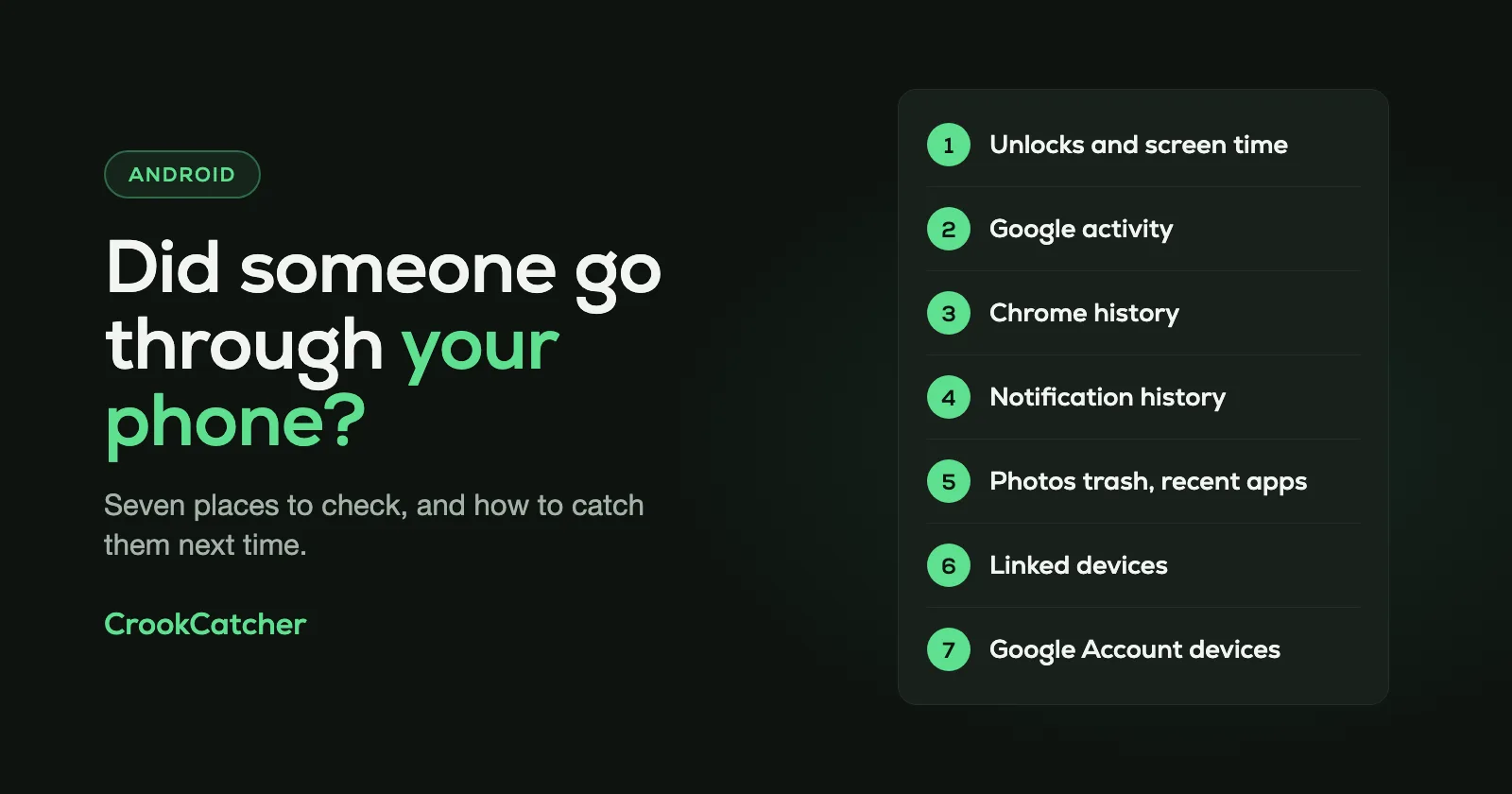
Android doesn’t keep a list of who unlocked your phone or when, but it does leave traces you can check. The quickest one is Digital Wellbeing: open Settings > Digital Wellbeing and look at Times opened, which counts how often the phone was unlocked today and which apps were opened. If the numbers are higher than your own use, someone else was on your phone. Your Google activity, Chrome history, notification history, Photos trash and linked devices can fill in the rest. None of them show who it was. For that you need a photo, which is covered at the end.
This guide is about checking your own phone.
1. Digital Wellbeing: unlocks and screen time
This is the best built-in clue, and it’s on by default on most phones.
Go to: Settings > Digital Wellbeing
On Samsung phones it’s called Digital Wellbeing and parental controls.
Tap the chart to see three views:
- Screen time: which apps were on screen today, and for how long.
- Times opened: how often the phone was unlocked and how often each app was opened.
- Notifications received.
Look for apps you didn’t open, or screen time during hours when you were asleep or away. On Samsung, the usage chart breaks screen time down per hour, which makes this easier.
The limit: you get counts and durations, not the time of each unlock, and nothing about who was holding the phone.
2. Your Google activity
If activity saving is on in your Google Account, Google keeps a timeline of searches, websites visited and videos watched, with the date and time of each.
Go to: Settings > Google > Manage your Google Account > Data & privacy > My Activity
Or open myactivity.google.com. Tap Details on an item to see when it happened, and sometimes which device and app.
Searches you didn’t make or videos you didn’t watch are a clear sign. An empty stretch can also mean something: items can be deleted.
3. Chrome history
Open Chrome, tap More (the three dots), then History. Chrome keeps the last 90 days.
It won’t show pages opened in Incognito mode or entries someone deleted, so a clean history doesn’t prove nothing happened.
4. Notification history
Android can keep a list of recent notifications, including ones that were swiped away. If a message notification is gone that you never saw, someone may have read or dismissed it.
Go to: Settings > Notifications > Notification history
On Samsung: Settings > Notifications > Advanced settings > Notification history.
It has to be turned on beforehand, and on a Pixel it covers the last 24 hours. Turn it on now so it’s there next time. Some phones don’t have it.
5. Photos trash and recent apps
- Google Photos trash: open Google Photos, then
Collections > Trash. Deleted photos and videos stay there for 30 days. Photos you didn’t delete yourself are worth a second look. - Recent apps: swipe up from the bottom of the screen, hold, then let go. The apps shown first are the ones used last. If the first one isn’t what you last used, someone has been in your phone. This is easy to clear, so it only works if the person was careless.
6. Linked devices in your messaging apps
Someone with a minute on your unlocked phone can link your messages to their own computer and keep reading them afterwards.
- WhatsApp: tap the three dots, then Linked devices. Tap any device you don’t recognize and choose Log out.
- Google Messages: tap your account picture, then Device pairing. Unpair any computer that isn’t yours.
7. Devices signed in to your Google Account
Open your Google Account, go to Security & sign-in and look at Your devices. It lists every device signed in to your account now or in the last few weeks.
This shows sign-ins to your account, not physical use of your phone. But a device you don’t recognize there is more serious than someone picking up your phone: sign it out and change your Google password.
What Android can’t tell you
All of these are traces. Put together, they can tell you that someone used your phone and roughly what they did. They can’t tell you:
- Who it was. Android never takes a photo.
- When each unlock happened. There’s no unlock history, only a daily count.
- Whether someone tried and failed. Wrong PIN attempts aren’t listed anywhere. Read what Android does with failed unlock attempts.
Most traces can also be cleared by anyone who knows where they are.
Make your phone harder to get into
If someone went through your phone, they either found it unlocked or know your PIN.
- Change your PIN or password to one nobody has watched you type. Use 6 digits or more.
- Shorten the screen timeout, so the phone locks soon after you put it down.
- Check your fingerprints. Open Settings and search for “Fingerprint” to see how many are saved. Remove any you didn’t add.
- Hide notification content on the lock screen, so messages can’t be read without unlocking.
More in 5 Android anti-theft settings to turn on today.
How to catch the person next time
Once your PIN is changed, the next person who picks up your phone has to guess. That’s when you can get a photo of them.
CrookCatcher uses a standard Android permission, Device admin, to be notified each time an unlock attempt fails. It then takes a photo with the front camera, records the GPS location and an approximate address, and emails both to you. Every attempt is also saved in the app with its time, so you finally have the list Android doesn’t give you.
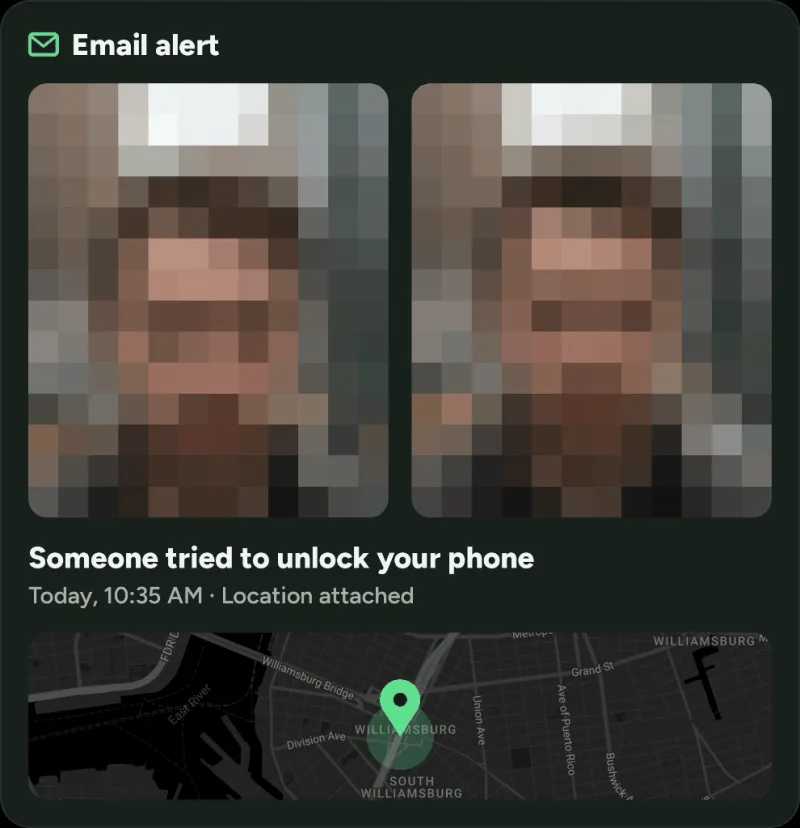
The free version takes the photo and sends the email. With CrookCatcher Pro, break-in detection also photographs someone who gets a PIN wrong and then guesses it correctly.
CrookCatcher has been downloaded more than 12 million times since 2014 and takes around 1.2 million intruder photos a day. Setup takes a few minutes: see how to see who tried to unlock your Android phone.
Frequently Asked Questions
Q: Can I see when my Android phone was last unlocked?
A: No. Android has no unlock history. Digital Wellbeing shows how many times the phone was unlocked today, but not when, and not by whom.
Q: How do I know if someone opened my phone while I was asleep?
A: Check Digital Wellbeing in the morning. Screen time or app use during the night that isn’t yours is the clearest sign. On Samsung you can see screen time per hour.
Q: Can someone go through my phone without leaving a trace?
A: Mostly, yes, if they know what to clear: browser history, recent apps and Google activity can all be deleted. Digital Wellbeing’s counts are harder to hide. A photo taken at the moment of a wrong PIN can’t be undone by the person, because it’s already in your inbox.
Q: How do I catch someone snooping on my phone?
A: Change your PIN so they have to guess, and install an app that photographs wrong unlock attempts, like CrookCatcher. You get a photo, the time and the location by email.
Q: Is there an app that shows who unlocked my phone?
A: Apps can’t see who used a correct PIN or fingerprint, but they can react to failed attempts. CrookCatcher takes a photo after a wrong PIN, pattern or password, and Pro’s break-in detection also covers a correct guess that follows a wrong one.
Q: Does a factory reset remove someone’s access to my phone?
A: Changing your PIN, removing unknown fingerprints and logging out linked devices is usually enough. Also change your Google password if you saw a device you don’t recognize in your Google Account.
Sources
- Google, Android Help: Manage how you spend time on your Android phone with Digital Wellbeing
- Samsung: How to use the Digital Wellbeing feature
- Google Account Help: Access and control activity in your account
- Google Chrome Help: Check or delete your Chrome browsing history
- Google, Android Help: Control notifications on Android
- Samsung: Notification history
- Google Photos Help: Delete or restore your photos and videos
- WhatsApp Help Center: About linked devices
- Google Messages Help: Check your messages on your computer
- Google Account Help: See devices with account access

