
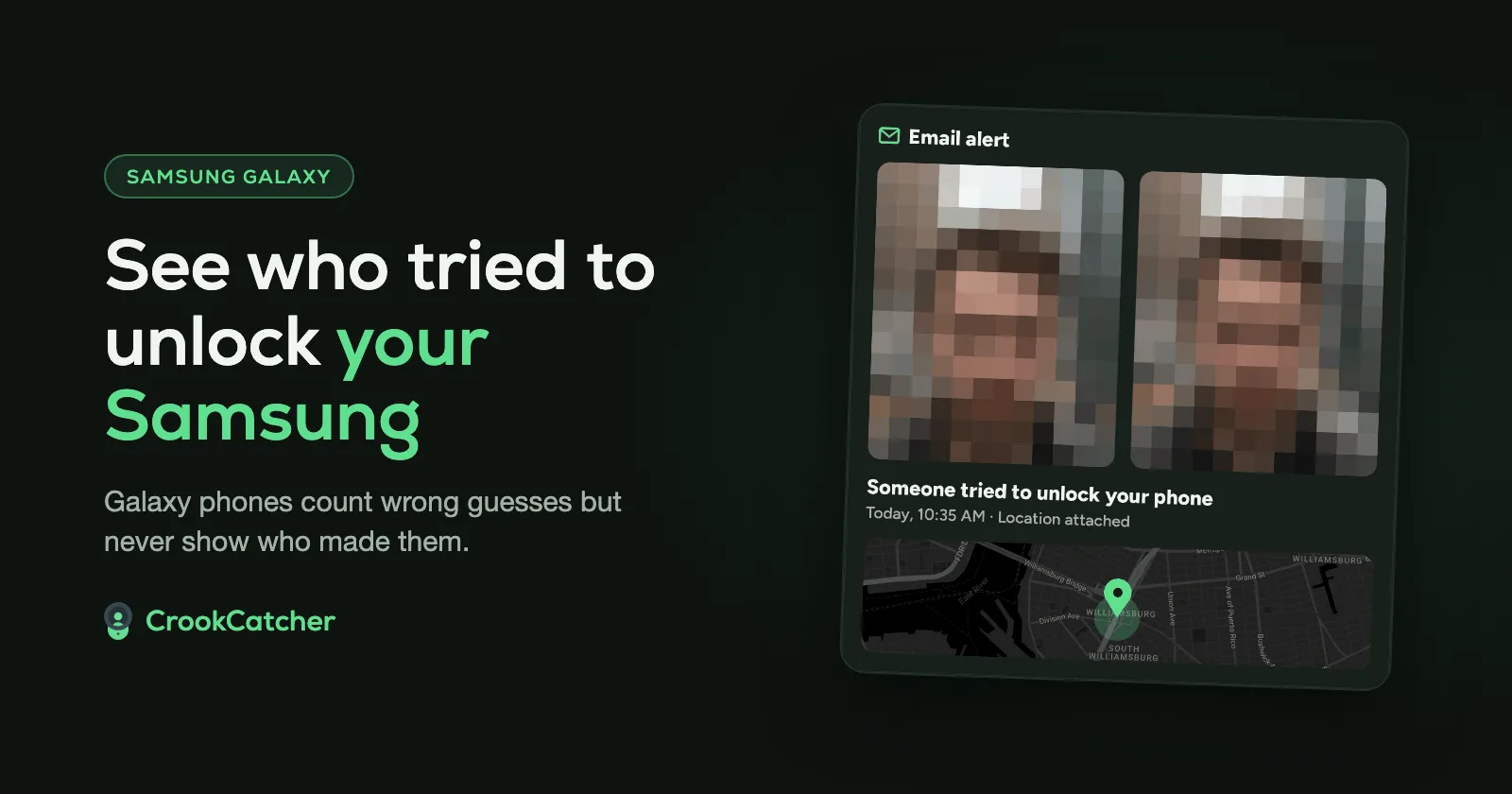
Samsung Galaxy phones can’t show you who tried to unlock them. One UI counts wrong PIN, pattern and password guesses only to lock the phone for longer and longer. It doesn’t keep a list you can check, and it never takes a photo. To see who it was, install an app that reacts to failed unlocks, like CrookCatcher. It takes a photo with the front camera after a wrong PIN and emails it to you with the location.
What your Samsung does after a wrong PIN
Samsung’s newest lock screen policy (One UI 9) makes the person wait longer after each wrong guess:
| Wrong guesses | Wait before the next try |
|---|---|
| 5 | 1 minute |
| 6 | 5 minutes |
| 7 | 15 minutes |
| 8 | 30 minutes |
| 9 | 90 minutes |
| 10 | 4 hours |
| 11 | 12 hours |
| 12 | 24 hours |
| 13 | Phone is locked permanently |
After the 13th wrong guess, the phone can only be used again after a factory reset, which erases everything on it. Samsung can’t recover your PIN for you.
A few details from Samsung:
- This applies to phones that come with One UI 9. Phones updated to One UI 9 keep their old behavior until they’re factory reset.
- Repeating the same wrong entry doesn’t count again. Identical wrong attempts in a row are skipped, so a child tapping the same code won’t lock you out.
- The lock screen warns you how many attempts are left once someone gets close to the limit.
That warning, or a “Try again in…” message, is the only sign you’ll see that someone tried. It doesn’t say who, when, or how many times.
Samsung settings worth turning on
These don’t show you who tried, but they make your phone much harder to get into or take away.
Theft protection
Go to: Settings > Security and privacy > Lost device protection > Theft protection
- Identity check: away from places you’ve marked as safe (like home), changing sensitive security settings needs your fingerprint or face, not just your PIN.
- Security delay: part of Identity check. If someone tries to change your biometrics, the change only takes effect after an hour, which gives you time to lock the phone remotely.
- Theft detection lock: locks the screen if the phone detects it’s been snatched.
- Offline device lock: locks the screen if a thief keeps the phone disconnected.
Secure lock settings
Go to: Settings > Lock screen > Secure lock settings (enter your PIN)
- Lock network and security: keeps network and security functions locked while the phone is locked, so a thief can’t simply cut the connection or power it off from the lock screen. More on this in how to stop thieves from turning off your phone.
- Auto factory reset: erases the phone after too many wrong unlock attempts (Samsung’s support page gives 15). Think twice before turning this on if children use your phone. It also erases any intruder photos stored on the phone, which is one more reason to have them emailed to you.
What Samsung can’t tell you
- Who tried. No photo of the person.
- When it happened, or how many times.
- Where the phone was at the time.
- An alert while it happens.
How to get a photo of whoever tries to unlock your Samsung
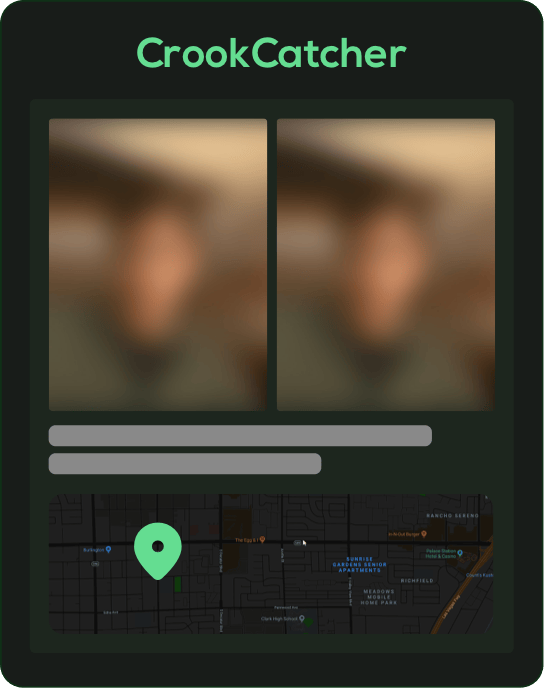
CrookCatcher fills exactly that gap. When someone enters a wrong PIN, pattern or password, it takes a photo with the front camera, records the location and an approximate address, and emails both to you. Every attempt is also saved in the app with its time.
Set it up on your Galaxy:
- Install CrookCatcher from Google Play. There’s no account to create.
- Allow Device admin. This Android permission is how the app is told that an unlock attempt failed. CrookCatcher uses it only for that.
- Allow camera and location access.
- Connect a Gmail account for the alert emails. CrookCatcher can only send emails from it, not read them.
- Keep it awake. Samsung can put apps to sleep to save battery, which can stop the alerts. Add CrookCatcher to Never sleeping apps:
Settings > Battery > Background usage limits > Never sleeping apps(on older models:Settings > Battery and device care > Battery > Background usage limits). - Test it. Lock your phone, enter a wrong PIN on purpose, then unlock it. Your own photo should appear in the app and your inbox.
You choose how many wrong attempts it takes before CrookCatcher acts. Since 2014, CrookCatcher has been downloaded more than 12 million times, and it takes around 1.2 million intruder photos a day.
Frequently Asked Questions
Q: Does Samsung have a built-in intruder selfie feature?
A: Not for the lock screen. Samsung’s lock screen and theft protection settings lock the phone after wrong attempts, but none of them take a photo of the person or keep a list of attempts. You need an app like CrookCatcher for that.
Q: How many wrong PIN attempts does a Samsung phone allow?
A: On phones that come with One UI 9, the waits start after 5 wrong guesses and the phone locks permanently on the 13th. After that, only a factory reset makes it usable again. Older phones and phones updated to One UI 9 follow their previous limits.
Q: Will my Samsung erase itself after too many wrong attempts?
A: Only if Auto factory reset is turned on in Secure lock settings. On phones with One UI 9, running out of attempts doesn’t erase the phone by itself, but you’ll have to factory reset it to use it again.
Q: Does CrookCatcher work with Samsung’s fingerprint and face unlock?
A: Yes, you can keep using them. CrookCatcher reacts to a wrong PIN, pattern or password. Failed fingerprint or face attempts don’t trigger it.
Q: Will the person see that they were photographed?
A: CrookCatcher works in the background without a camera preview. Recent Android versions show a small indicator while the camera is in use; that’s a system feature apps can’t hide.
Q: Why did CrookCatcher stop sending alerts on my Samsung?
A: Usually because Samsung put the app to sleep to save battery. Add it to Never sleeping apps (see step 5 above) and test again.
Sources
- Samsung: One UI 9.0 lockscreen security policy changes
- Samsung: What are the Secure Lock settings?
- Samsung: What is Theft Protection in One UI 7?
- Samsung: How to use security settings on your phone
- Samsung: Sleeping apps on your Galaxy device
- Google, Android Help: Protect your personal data against theft
Related guides
- How to see who tried to unlock your phone (and get their photo)
- How to stop thieves from turning off your phone
- Top 5 Android settings to secure your phone against theft